


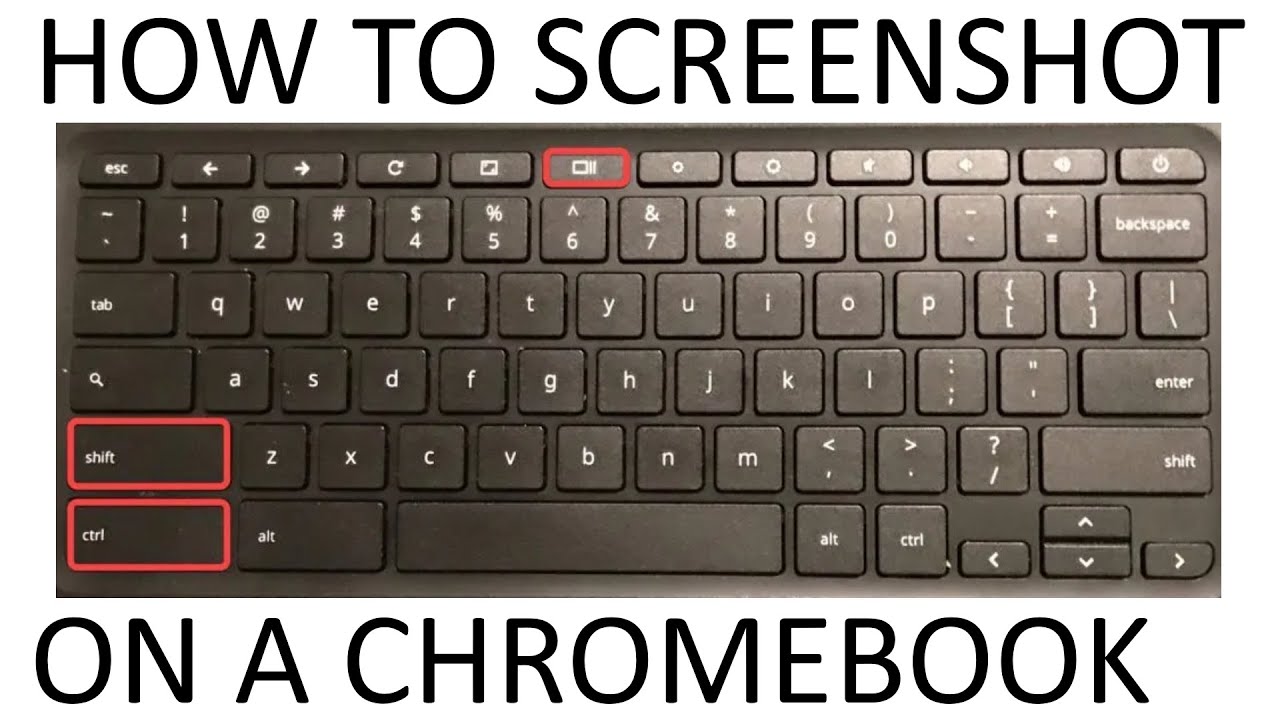
Taking a screenshot on a Chromebook is simple once you know the right shortcuts and tools. Whether you want to capture the full screen, a selected area, or only one window, ChromeOS gives you quick built-in options without needing extra software.
Introduction
Learning how to screenshot on Chromebook is one of the most useful skills for students, professionals, teachers, content creators, and everyday users. A screenshot helps you save exactly what appears on your screen, whether it is an online receipt, an error message, a class note, a video frame, a website section, or an important conversation. Chromebooks are designed to be simple, fast, and cloud-friendly, but their keyboard layout is different from Windows and Mac computers, which can make basic tasks feel confusing at first. Many new users look for a “Print Screen” button and do not find one, because Chromebook keyboards use a dedicated Show Windows key instead. The good news is that once you understand the main screenshot shortcuts and the built-in Screen Capture tool, taking screenshots becomes very easy. This guide explains every major method in a clear and practical way, including full-screen screenshots, partial screenshots, window screenshots, tablet mode screenshots, external keyboard options, file locations, editing tips, sharing methods, and common troubleshooting fixes.
What Makes Screenshots on Chromebook Different?
A Chromebook runs on ChromeOS, which is different from Windows, macOS, and traditional Linux systems. Because of this, the screenshot process is also slightly different. Instead of using a Print Screen key, most Chromebooks use a key called the Show Windows key, which usually looks like a rectangle with two vertical lines beside it. This key is often located on the top row of the keyboard, near the brightness and volume controls. The Show Windows key is used with other keys like Ctrl and Shift to capture your screen. ChromeOS also includes a modern Screen Capture toolbar, which allows you to choose between screenshot and screen recording options. This makes Chromebooks especially convenient because you do not need to install a separate screenshot app for basic captures. Everything you need is already built into the operating system, and screenshots are automatically saved in your downloads or chosen folder, making them easy to find, edit, and share.
How to Screenshot on Chromebook Using the Keyboard Shortcut
The fastest way to take a screenshot on Chromebook is by using the keyboard shortcut. To capture the entire screen, press Ctrl + Show Windows key at the same time. The screen will briefly flash or show a small notification, confirming that the screenshot has been taken. This method captures everything currently visible on your screen, including open browser tabs, apps, the shelf, and any visible windows. It is useful when you need a quick record of your full display, such as saving a complete webpage view, capturing an online meeting screen, or documenting a technical issue. After the screenshot is taken, ChromeOS usually saves it automatically to the Downloads folder unless you have changed the default save location. You may also see a small preview in the corner of the screen, allowing you to open, edit, copy, or share the screenshot immediately. This shortcut is the Chromebook version of the traditional Print Screen function, and it is the first method every Chromebook user should learn.
How to Screenshot on Chromebook Using the Keyboard Shortcut
The fastest way to take a screenshot on Chromebook is by using the keyboard shortcut. To capture the entire screen, press Ctrl + Show Windows key at the same time. The screen will briefly flash or show a small notification, confirming that the screenshot has been taken. This method captures everything currently visible on your screen, including open browser tabs, apps, the shelf, and any visible windows. It is useful when you need a quick record of your full display, such as saving a complete webpage view, capturing an online meeting screen, or documenting a technical issue. After the screenshot is taken, ChromeOS usually saves it automatically to the Downloads folder unless you have changed the default save location. You may also see a small preview in the corner of the screen, allowing you to open, edit, copy, or share the screenshot immediately. This shortcut is the Chromebook version of the traditional Print Screen function, and it is the first method every Chromebook user should learn.
How to Take a Partial Screenshot on Chromebook
A partial screenshot is useful when you do not want to capture the entire screen and only need a specific section. To take a partial screenshot on Chromebook, press Ctrl + Shift + Show Windows key. After pressing these keys, your cursor will change, and the screen will appear slightly dimmed. You can then click and drag over the area you want to capture. Once you release the mouse or touchpad, ChromeOS will take a screenshot of only that selected area. This is one of the most practical screenshot methods because it gives you more control and helps you avoid unnecessary information appearing in the image. For example, you can capture only a chart from a webpage, a paragraph from an article, a section of an assignment, or a specific error message without showing your whole desktop. Partial screenshots are also helpful for privacy because you can leave out personal tabs, notifications, names, or other sensitive details. If you regularly create notes, tutorials, reports, or presentations, this shortcut can save a lot of editing time.
How to Capture a Specific Window on Chromebook
Sometimes you may want to screenshot only one open window instead of the full screen or a manually selected area. ChromeOS makes this possible through the Screen Capture tool. Press Ctrl + Shift + Show Windows key to open the capture interface, then select the window screenshot option from the toolbar. After choosing that option, click the window you want to capture. ChromeOS will take a clean screenshot of that window only. This is especially useful when you have multiple apps or browser windows open and want your screenshot to look neat and focused. For example, you may want to capture only a Google Docs window, a browser tab, a settings page, or an app screen without showing your wallpaper or other background activity. Window screenshots are often better for professional documents because they look more organized than full-screen captures. They also reduce the need for cropping later, which means you can quickly use the image in emails, reports, school assignments, or help requests.
Using the Chromebook Screen Capture Tool
The Screen Capture tool is one of the easiest ways to take screenshots on Chromebook because it provides visual options instead of requiring you to remember every shortcut. You can open it by pressing Ctrl + Shift + Show Windows key, or by clicking the clock area on the shelf, opening the quick settings panel, and selecting Screen Capture. Once the toolbar appears, you can choose whether you want to capture the full screen, a selected area, or a specific window. You can also switch between screenshot mode and screen recording mode. This tool is helpful for beginners because it clearly shows the available capture types and lets you choose the exact method you need. It is also useful for users who switch between laptops and tablets, because the same tool works well across different Chromebook designs. If you take screenshots often, the Screen Capture tool may become your preferred method because it combines flexibility, simplicity, and extra options in one place.
How to Screenshot on Chromebook in Tablet Mode
Many Chromebooks are convertible devices, which means they can be folded into tablet mode. In tablet mode, the physical keyboard may not be easily available, so the screenshot method changes. To take a screenshot on a Chromebook in tablet mode, press the Power button + Volume Down button at the same time. This is similar to the screenshot method used on many Android phones and tablets. The screen will capture what is currently visible and save it automatically. This method is useful when you are reading, drawing, browsing, watching a video, or using apps in tablet mode. It is also helpful for students and digital note-takers who use a stylus and want to capture handwritten notes, diagrams, or learning materials. If your Chromebook has a detachable keyboard, you can still use the keyboard shortcuts when the keyboard is attached, but the button combination is usually faster when using the device as a tablet.
How to Screenshot on Chromebook with an External Keyboard
If you connect a Windows-style external keyboard to your Chromebook, you may not see the Show Windows key. In many cases, ChromeOS treats the F5 key as the Show Windows key on external keyboards. This means you can usually take a full screenshot by pressing Ctrl + F5. For a partial screenshot, try Ctrl + Shift + F5. However, the exact behavior can depend on the keyboard and Chromebook model. If the shortcut does not work, you can always use the Screen Capture option from quick settings. External keyboards are common for users who connect Chromebooks to monitors or use them as desktop workstations. Knowing this shortcut helps you stay productive without needing to switch back to the built-in keyboard. It is also useful in classrooms, offices, or home setups where a Chromebook is connected to a larger screen, mouse, and keyboard for easier typing and multitasking.
Where Screenshots Are Saved on Chromebook
After you take a screenshot, ChromeOS usually saves it in the Downloads folder by default. You can open the Files app and select Downloads to find your screenshot. The file name usually includes the word “Screenshot” along with the date and time it was captured, which makes it easier to identify. In newer versions of ChromeOS, you may also have the option to choose a different save location from the Screen Capture toolbar settings. This is useful if you want screenshots to go directly into a specific folder, such as a school folder, project folder, work folder, or cloud storage location. Screenshots may also appear as a small preview notification immediately after being taken. From that preview, you can open the screenshot, copy it, edit it, delete it, or share it. Knowing where screenshots are saved is important because many users take the screenshot successfully but then struggle to find the file afterward.
How to Copy a Screenshot Instead of Saving It
Sometimes you may not want to save a screenshot as a file and only need to paste it into a document, message, or email. After taking a screenshot on Chromebook, a preview usually appears in the bottom corner of the screen. You can often select the copy option from that preview and then paste the image where you need it using Ctrl + V. This is very convenient when you are working quickly and do not want to manage extra files. For example, you can take a screenshot of an error message and paste it directly into a support chat, or capture a small section of a webpage and paste it into a Google Doc. Copying screenshots instead of saving them can keep your Downloads folder cleaner and reduce file clutter. However, if the screenshot is important for long-term use, it is better to save it properly and rename it so you can find it later.
How to Edit Screenshots on Chromebook
Once you take a screenshot, you may want to crop it, rotate it, annotate it, or adjust it before sharing. Chromebooks include basic editing tools that are enough for many everyday needs. Open the screenshot from the Files app or from the notification preview, then use the built-in image viewer or editor options. You can crop out unwanted areas, draw attention to important sections, or make the image cleaner for presentation. Some Chromebook models also support stylus input, which makes annotation easier. Editing is especially helpful when creating tutorials, assignment evidence, project documentation, or step-by-step instructions. For example, you might take a screenshot of a settings menu and crop it so only the relevant setting is visible. You might also mark a button, highlight a text area, or remove unnecessary parts of the screen. A well-edited screenshot is easier to understand and looks more professional.
How to Share Screenshots from a Chromebook
Sharing screenshots from a Chromebook is simple because ChromeOS is closely connected with cloud-based tools. You can attach screenshots to emails, upload them to Google Drive, insert them into Google Docs or Slides, send them through messaging apps, or share them through classroom platforms. To share a screenshot, open the Files app, find the image, and select the sharing option or attach it manually in the app you are using. You can also drag and drop the screenshot into many browser-based tools. If the screenshot preview appears immediately after capture, you may be able to share it directly from there. Before sharing, always check the screenshot carefully to make sure it does not include private information, such as email addresses, personal messages, open tabs, account names, passwords, or financial details. Screenshots are very useful, but they can accidentally reveal more than intended if you capture the whole screen without reviewing it first.
Best Uses for Chromebook Screenshots
There are many situations where knowing how to screenshot on Chromebook can save time and improve communication. Students can capture online notes, assignment instructions, quiz results, or research material for later reference. Teachers can capture examples, prepare learning resources, or provide visual feedback. Office workers can document tasks, save reports, capture dashboards, or explain software problems to support teams. Content creators can use screenshots in tutorials, blog posts, videos, and social media guides. Everyday users can save receipts, booking confirmations, product details, maps, recipes, or important messages. A screenshot is often faster and clearer than trying to explain something in words. Instead of typing a long description of what you see, you can capture the screen and share the image. This makes screenshots one of the most practical tools built into every Chromebook.
Common Screenshot Problems on Chromebook
Even though taking screenshots on Chromebook is usually easy, some users face small problems. One common issue is pressing the wrong key because the Show Windows key is not clearly understood. Another issue is not being able to find the screenshot after taking it. In most cases, checking the Downloads folder solves this problem. Some users also have trouble when using an external keyboard because the shortcut may use F5 instead of the Show Windows key. Another possible issue is storage space. If your Chromebook storage is almost full, screenshots may not save properly, so deleting unnecessary files can help. If the Screen Capture tool does not open, restarting the Chromebook may fix the problem. Also, make sure your ChromeOS system is updated because updates can improve performance and fix small bugs. Most screenshot problems are simple and can be solved by checking shortcuts, file location, keyboard layout, storage, and system updates.
Tips for Taking Better Screenshots
To take better screenshots, prepare your screen before capturing it. Close unnecessary tabs, hide private information, and adjust the window size so the important content is easy to see. If you only need part of the screen, use a partial screenshot instead of capturing everything and cropping later. If you are making a guide or tutorial, keep your screenshots consistent by using similar window sizes and clear visible text. Rename important screenshot files after taking them so you can find them easily. For example, instead of leaving a file named only with the date and time, rename it to something meaningful like “assignment-instructions” or “payment-confirmation.” If you plan to share a screenshot professionally, review it carefully and crop out distractions. These small habits can make your screenshots clearer, safer, and more useful.
Privacy and Safety When Taking Screenshots
Screenshots can capture sensitive information, so privacy should always be considered. Before taking or sharing a screenshot, check whether your screen shows personal messages, passwords, email addresses, student names, private documents, payment information, or confidential work details. If you need to share a screenshot for support, capture only the relevant area using the partial screenshot tool. If private details are already visible in the image, crop them out or cover them before sending. This is especially important for work, education, banking, healthcare, and personal communication. A screenshot may seem like a simple image, but it can contain a lot of information. Safe screenshot habits protect your privacy and help you share information responsibly.
Chromebook Screenshot Shortcuts Summary
The most important shortcut to remember is Ctrl + Show Windows key for a full-screen screenshot. For a selected area, use Ctrl + Shift + Show Windows key and drag over the area you want to capture. For tablet mode, use Power + Volume Down. If you are using an external keyboard, try Ctrl + F5 for a full screenshot and Ctrl + Shift + F5 for a partial screenshot. You can also open the Screen Capture tool from the quick settings panel if you prefer clicking instead of using keyboard shortcuts. Once you learn these few options, you can capture almost anything on your Chromebook quickly and easily. The method you choose depends on what you need: full screen for everything visible, partial screenshot for selected content, window screenshot for a clean single-window image, and tablet mode buttons when the keyboard is unavailable.
FAQs About How to Screenshot on Chromebook
1. What is the easiest way to screenshot on Chromebook?
The easiest way to screenshot on Chromebook is to press Ctrl + Show Windows key. This instantly captures the entire screen and saves the image automatically. If you only want part of the screen, press Ctrl + Shift + Show Windows key, then drag over the area you want to capture.
2. Where do screenshots go on Chromebook?
Screenshots usually go to the Downloads folder on your Chromebook. You can find them by opening the Files app and selecting Downloads. The screenshot file name normally includes the date and time, which helps you identify when it was taken.
3. Can I take a screenshot on Chromebook without a keyboard?
Yes, you can take a screenshot without a keyboard if your Chromebook is in tablet mode. Press the Power button + Volume Down button at the same time. This captures the screen just like taking a screenshot on many tablets or smartphones.
4. How do I take a screenshot of only part of my Chromebook screen?
To take a screenshot of only part of your Chromebook screen, press Ctrl + Shift + Show Windows key. Then click and drag your cursor over the section you want to capture. Release the cursor, and ChromeOS will save only that selected area.
5. Why is my Chromebook screenshot shortcut not working?
Your shortcut may not work if you are pressing the wrong key, using an external keyboard with a different layout, or if the system has a temporary issue. Try using Ctrl + F5 on an external keyboard, open the Screen Capture tool from quick settings, check your storage space, or restart your Chromebook.
Conclusion
Knowing how to screenshot on Chromebook makes everyday digital tasks faster, easier, and more organized. Whether you need to capture your entire screen, select a specific area, save one window, or take a screenshot in tablet mode, ChromeOS gives you simple built-in tools to do it. The most useful shortcuts are Ctrl + Show Windows key for a full screenshot and Ctrl + Shift + Show Windows key for a partial screenshot. You can also use the Screen Capture tool if you prefer a visual menu with more options. Once your screenshot is taken, you can find it in the Downloads folder, edit it, copy it, rename it, upload it, or share it wherever needed. With a little practice, taking screenshots on a Chromebook becomes second nature and can help you study, work, communicate, troubleshoot, and save important information with confidence.
You May Also Read
for more visit newsatacker.blog
